Options
The Everything Options contains settings that modify the system or Everything.
To open the Everything Options window:
- In Everything, from the Tools menu, click Options.
Select one of the
"tabs" below:
Click the
Restore defaults button to load the defaults for the current page.
Import and Export Settings
See also
General
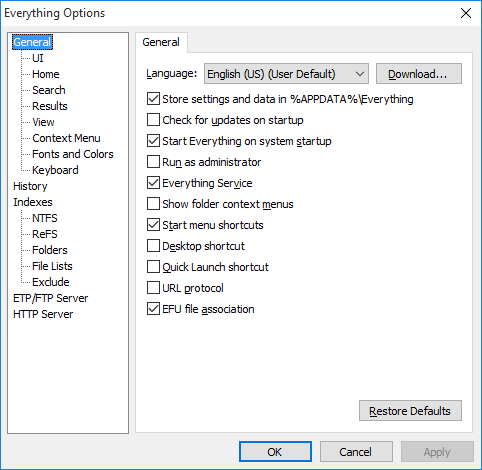
Contains settings for configuring the installation of Everything.
- Language
- Set the language used to display text in Everything.
If User Default is selected, Everything uses the current Windows display language for the current user.
(User Default) is displayed next to this language in the language selection combo.
Click the Download button to the right of languages to open the download page for the Everything language pack in your web browser.
- Store settings and data in %APPDATA%\Everything
- Store settings and data in
%APPDATA%\Everything.
If disabled, settings and data are stored in the same location as your Everything.exe.
This option is enabled by default in the installed version and disabled by default in the portable version.
Changing this setting will overwrite any existing settings.
- Check for updates on startup
- Check www.voidtools.com for Everything updates when starting Everything.
To include beta updates, see Beta updates.
- Start Everything on system startup
- Start Everything when Windows starts.
When Everything starts from Windows startup, the tray icon is shown and the database is loaded and updated, no Everything search window is shown.
- Everything service
- Install and run the Everything service.
The Everything service allows Everything to index and monitor system NTFS volumes as a standard user.
- Run indexing process as administrator
- Run an additional Everything indexing process with administrative privileges to index and monitor system NTFS volumes.
When enabled, Everything can run as a standard user without the Everything service.
- Run as administrator
- Run Everything with administrative privileges.
If enabled and Everything is run as a standard user, Everything will relaunch with administrative privileges.
The Everything service is not required when this option is enabled.
If you disable this option, you must restart Everything manually for the change to take effect.
When running as administrator, applications launched from Everything will also run with administrative privileges.
Mapped network drives may not be visible when Everything is running as administrator.
- Add the Search Everything... item to folder context menus.
The folder context menu is displayed when you right click a folder in Windows.
Clicking on the folder context menu item Search Everything... will launch Everything and populate the search with the selected folder.
- Add a Search Everything shortcut to the Start menu for all users.
- Desktop shortcut
- Add a Search Everything shortcut to the Desktop for the current user.
- URL protocol
- Open Everything from es: URLs.
For example, when clicking on es:abc123 Everything will launch and populate the search with abc123.
- EFU file association
- Open EFU files with Everything.
EFU files are Everything file lists.
For more information, see File Lists.
UI
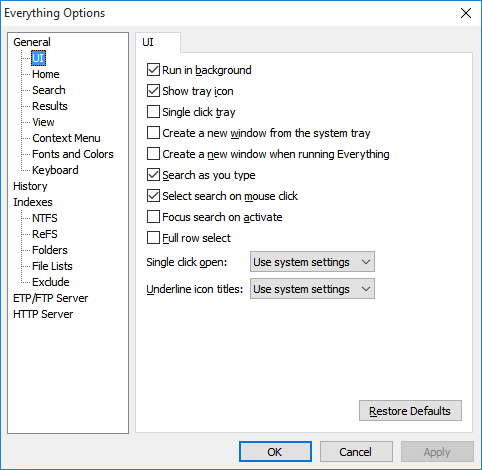
Contains settings for configuring the user interface.
- Scale
- Set the size of windows, controls and fonts.
The Recommended range is 75% to 200%.
A custom scale can be entered.
Menu and scrollbar scaling are not available when using the standard theme.
The standard theme uses the system menu and scrollbars, which do not support scaling.
To enable menu and scrollbar scaling, set the menu_theme and scrollbar_theme to Everything under Tools -> Options -> Advanced.
Requires a restart.
- Run in background
- Keep Everything running in the background when all search windows are closed.
If disabled and all search windows are closed, Everything will exit completely.
- Show tray icon
- Show Everything in the system tray.
- Single click tray
- If enabled, Everything will open from the tray icon with a single mouse click.
If disabled, Everything will open from the tray icon with a double click.
- Create a new window from the system tray
- If enabled, always create a new search window from the system tray.
If disabled, opening the search window from the tray will show an existing search window before creating a new search window.
- Create a new window when running Everything
- If enabled, always create a new search window when running Everything.exe or an Everything shortcut.
If disabled, running Everything.exe or an Everything shortcut will show an existing search window before creating a new search window.
- Open searches in tabs
- Create a new tab when launching Everything.exe with a search, URL or file list.
Searches open in a new tab instead of new windows.
- Switch to new search tabs immediately
- When opening a search in a new tab, switch to it immediately.
Home
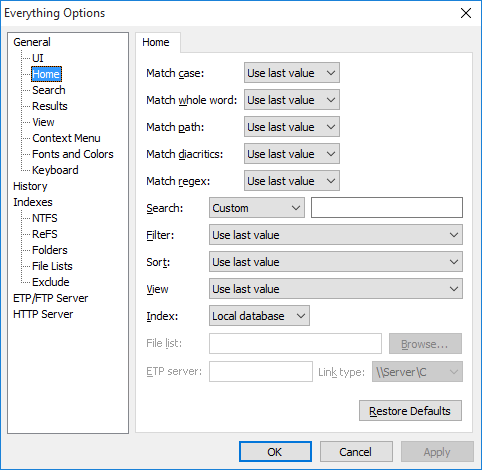
Contains settings for configuring the first search when a new Everything search window is shown.
- Match case
- Match or ignore case when opening a new window or tab.
If set to use last value, the match case setting will be restored from the previously closed Everything search window.
- Match whole word
- Match whole words when opening a new window or tab.
If set to use last value, the match whole word setting will be restored from the previously closed Everything search window.
- Match path
- Match the full path and name when opening a new window or tab.
If set to use last value, the match path setting will be restored from the previously closed Everything search window.
- Match diacritics
- Match or ignore diacritics when opening a new window or tab.
If set to use last value, the match diacritics setting will be restored from the previously closed Everything search window.
- Match prefix
- Match only the start of words when opening a new window or tab.
If set to use last value, the match prefix setting will be restored from the previously closed Everything search window.
- Match suffix
- Match only the end of words when opening a new window or tab.
If set to use last value, the match suffix setting will be restored from the previously closed Everything search window.
- Ignore punctuation
- Ignore punctuation in filenames when opening a new window or tab.
If set to use last value, the ignore punctuation setting will be restored from the previously closed Everything search window.
- Ignore white-space
- Ignore white-space in filenames when opening a new window or tab.
If set to use last value, the ignore white-space setting will be restored from the previously closed Everything search window.
- Regular expressions
- Enable or disable regular expressions when opening a new window or tab.
If set to use last value, the Regular expressions setting will be restored from the previously closed Everything search window.
- Search
- The default search when opening a new window or tab.
If set to use last value, the search will be restored from the previously closed Everything search window.
Set to custom to define your own default search.
- Filter
- The default filter to active when opening a new window or tab.
If set to use last value, the filter will be restored from the previously closed Everything search window.
- Columns
- The default columns to show when opening a new window or tab.
If set to use last value, the columns will be restored from the previously closed Everything search window.
Click Select to choose the columns and order.
- Sort
- The default sort to use when opening a new window or tab.
If set to use last value, the sort will be restored from the previously closed Everything search window if it was a fast sort.
A fast sort is a sort by name, path, size, date modified, run count, date run or date recent changed.
To enable fast sorting for other properties, see Indexes
To always keep the sort, see Always keep sort.
- View
- Show thumbnails or detailed view when opening a new window or tab.
If set to use last value, the view will be restored from the previously closed Everything search window.
- Index
- The default index.
If set to use last value, the index will be restored from the previously closed Everything search window.
- File list
- The filename of the file list when the index is set to a file list.
- ETP server
- The username, password, host and port of the ETP server when the index is set to a ETP server.
- Link type
- The link type of the ETP server when the index is set to an ETP server.
Search
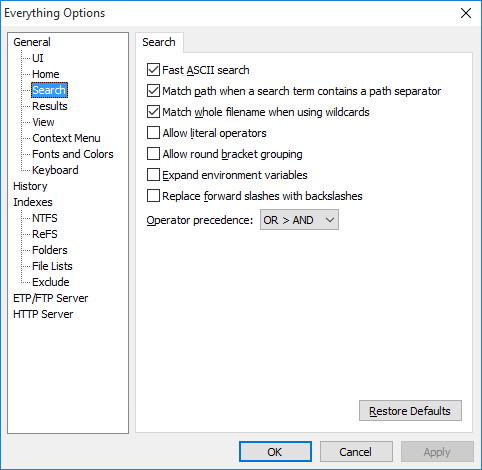
Contains settings for configuring the search.
- Search as you type
- When enabled, search results update automatically as you type or change any search parameters.
When disabled, search results are updated only when you press Enter in the search box.
- Search delay
- The number of milliseconds to wait before performing a search.
Set to 0 to disable.
Search as you type must be enabled.
- Select search on mouse click
- When enabled, all text in the search box is selected when it gains focus from a mouse click.
This makes it easier to quickly replace the current search text.
- Focus search on activate
- Focus the search box, when Everything is activated from alt + tab or clicking on an Everything search window with the mouse.
- Match whole filename when using wildcards
- When enabled, wildcard patterns match the whole filename.
When disabled, wildcards can match anywhere within a filename.
- Allow literal operators
- Treat the words
AND, OR, and NOT as search operators.
This may affect searches for filenames that include these words.
Literal operators can be escaped using double quotes (").
- Replace forward slashes with backslashes
- Forward slashes (/) are replaced with backslashes (\).
Can cause issues when searching for filenames that include a / character.
File lists can contain URLs with forward slashes (/).
- Operator precedence
- Set the order in which search operators are evaluated.
OR > AND evaluates OR operations first.
For example, searching for A B | C D is interpreted as A (B | C) D.
AND > OR evaluates AND operations first.
For example, searching for A B | C D is interpreted as (A B) | (C D).
Results
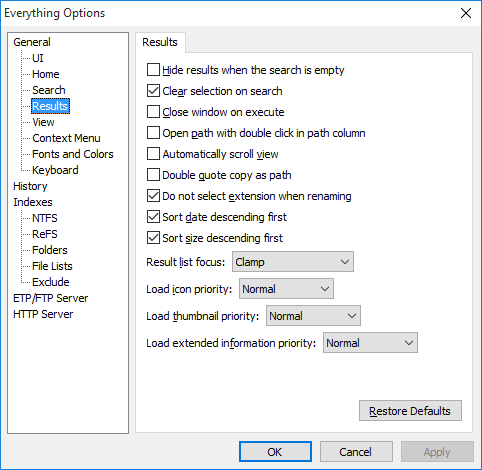
Contains settings for configuring the result list.
- Hide results when the search is empty
- No results are shown when the search box is empty.
- Clear selection on search
- Clear the current selection whenever the search changes.
Disable to preserve the selection between searches.
- Close window on execute
- Close the Everything search window after opening an item.
- Open path with double click in path column
- Paths in the path column can be opened by double-clicking them.
- Automatically scroll view
- Periodically scroll the result list when the mouse is dragged outside the visible area.
When disabled, the view only scrolls when the mouse is moved outside the visible area.
- Double quote copy as path
- Include double quotes (
") when copying filenames to the clipboard.
- Do not select extension when renaming
- When enabled, only the filename (excluding the extension) is selected when renaming a file.
- Sort date descending first
- When sorting by date, show the newest items first.
- Sort size descending first
- When sorting by size, show the largest files first.
- Full row select
- The whole row is selectable.
When disabled, only the name is selectable.
- Single click open
- Open files and folders with a single click or double click.
When single-click mode is enabled, hover over an item to select it.
- Underline icon titles
- Choose when filenames are underlined in single click mode.
View
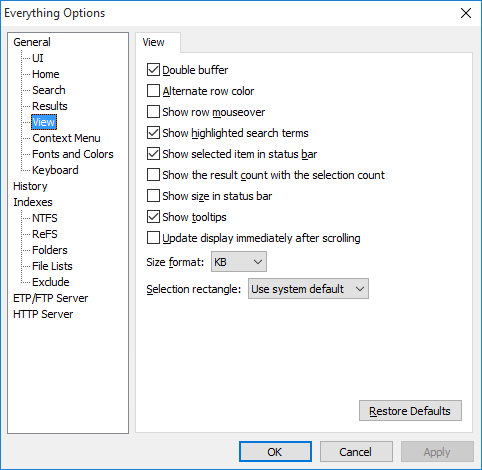
Contains settings for configuring the view.
- Alternate row color
- Show odd and even rows in a different color.
The alternate row color can be set under Fonts and colors.
- Show row mouseover
- Show the row the mouse is currently over in a different color.
The mouseover row color can be set under Fonts and colors.
- Show highlighted search terms
- Show highlighted search terms.
The highlight color can be set under Fonts and colors.
- Show selected item in status bar
- Displays detailed information about the currently selected file in the status bar.
The status bar format for the selected item can be customized with the statusbar_selected_item_format advanced option.
- Show total size in status bar
- Shows the total selection size in the status bar.
If there is no selection the total file size is shown.
- Size standard
- Specifies the unit standard used when displaying file sizes.
Can be one of the following values:
| Value | Description |
|---|
| JEDEC | 1KB = 1024 bytes. |
| IEC | 1KiB = 1024 bytes. |
| Metric | 1kB = 1000 bytes. |
- Size format
- Specifies which units are used to display file sizes.
Can be one of the following values:
| Value | Description |
|---|
| Auto | Use the most appropriate unit based on the size. |
| Bytes | Always display sizes in bytes. |
| KB | Always display sizes in KB. |
| MB | Always display sizes in MB. |
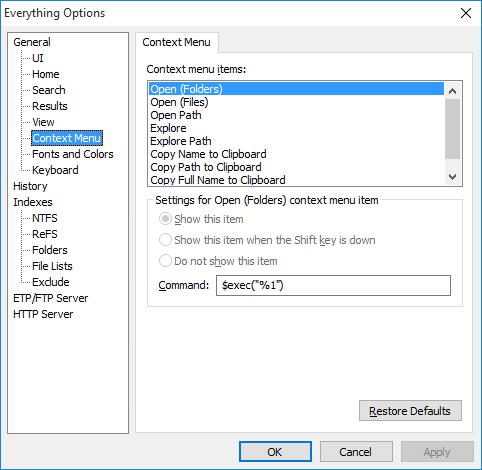
Contains settings for configuring the context menu.
The context menu is displayed when right clicking a file or folder in the Everything result list.
- Show this item
- Show this item when the Shift key is down
- Do not show this item
- (Use default show)
- Choose the visibility of this context menu item.
- Command
- The command for the selected context menu item.
For example, to open a file in Notepad:
"C:\Windows\Notepad.exe" "%1"
For example, to open a file location in Windows explorer and select the file:
$openpath("%1")
For more information, see Customizing.
Fonts and Colors
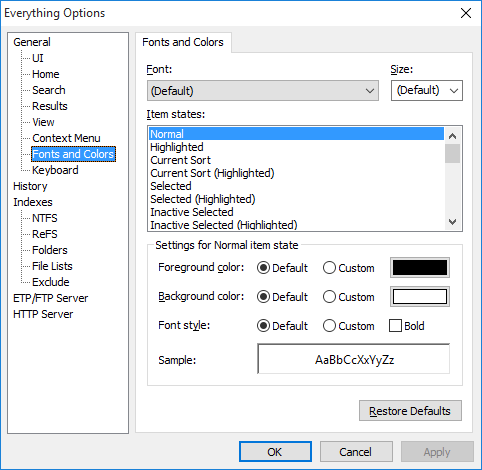
Contains settings for configuring the fonts and colors in Everything.
- Theme
- Set the theme for the main search window.
Dialogs always use the standard theme.
Settings below apply per theme.
Can be one of the following values:
| Theme | Description |
|---|
| (User default) | Use the system default theme setting. |
| Dark | Uses a dark theme for the main window. |
| Standard | Uses the standard light theme. |
- Item
- Selects the part of the interface to customize.
Settings below apply per item.
The (Default) item applies to all items unless a specific item is customized.
- Font
- Size
- Sets the font family and size for the selected item.
Use (Default) to use the Windows default icon font.
- Accent color
- Sets the color used to highlight the selected item when it is focused or hovered.
Select a custom color by clicking on the color button.
- Item states
- Selects the state of the item to customize.
Settings below apply per state.
- Foreground color
- Sets the text color for the selected item and state.
Select a custom color by clicking on the color button.
- Background color
- Sets the background color for the selected item and state.
Select a custom color by clicking on the color button.
- Font style
- Sets the font style for the selected item and state.
Can be bold or normal.
Keyboard
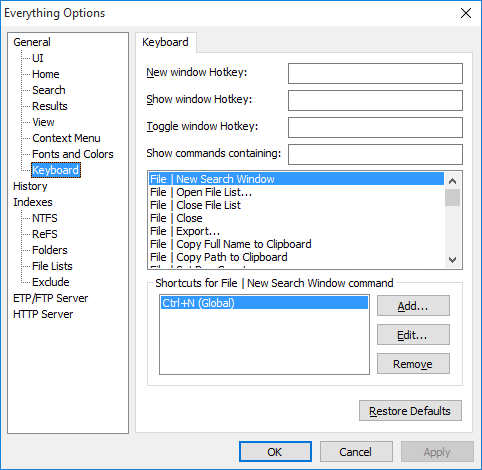
Contains settings for configuring keyboard shortcuts and hotkeys.
For a list of all the default keyboard shortcuts, please see Keyboard Shortcuts.
- New window hotkey
- Show window hotkey
- Toggle window hotkey
- New window will always show a new Everything search window.
Show window will show an existing window if one exists, otherwise a new search window is created.
Toggle window will hide any existing window that is in the foreground, otherwise an existing window is shown if one exists, otherwise a new search window is created.
Press a new keyboard shortcut to set the hotkey.
- Show commands containing
- Type in a search to filter the command list by name.
- Shortcuts for the selected command
- To add a new keyboard shortcut to the selected command or edit an existing keyboard shortcut for the selected command:
- Click Add... or Edit...
- Choose a location to use the shortcut. Can be one of the following values:
| Value | Description |
|---|
| Global | The shortcut can be used anywhere in Everything. |
| Search Edit | The shortcut can only be used in the search edit. |
| Result List | The shortcut can only be used in the result list. |
- Press a new shortcut key for shortcut key.
- Take note of the shortcut key currently used by list, These existing keyboard shortcuts will be removed when clicking OK.
- Click OK.
To remove a keyboard shortcut:
- Select the keyboard shortcut in shortcuts for the selected command.
- Click Remove.
History
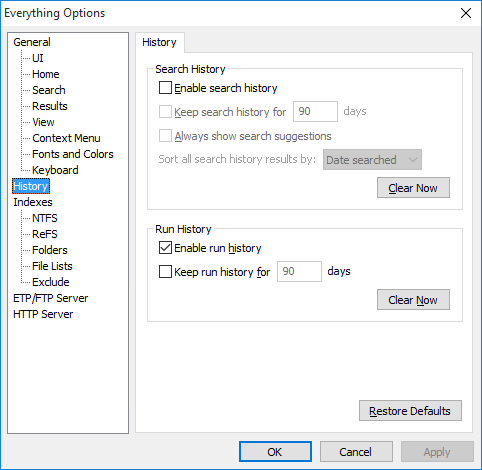
Contains settings for configuring search history and run history.
- Enable search history
- Remember search history.
A search is added to the search history when you press ENTER from the search box or when you perform an action on a result.
Disabling search history does not clear the search history.
Click Clear Now to permanently delete search history.
Press the drop down arrow on the right to show search history.
For more information, see Search History.
- Keep search history
- Specify the number of days to keep search history.
When history is loaded, entries older than the specified number of days are removed.
if disabled search history is kept forever.
- Always show search suggestions
- Show the suggestion list after every change to the search.
Consider disabling Search as you type.
See Everything.ini for more options.
- Sort all search history results by
- Selects the sort method when showing all search history.
- Enable run history
- Remember the number of times each file or folder has been run.
When you execute an item in the result list, its run count is incremented by one.
You can set the run count for an item in the result list by right clicking it and selecting Set run count....
Disabling run history will not delete run history.
Click Clear Now to permanently delete run history.
Pressing ENTER from the search box will focus the result with the highest run count.
Results can be sorted by run count.
See runcount: and daterun: to search run history.
For more information, see Run History.
- Keep run history
- Specify the number of days to keep run history. When the run history is loaded, searches that occurred longer than the specified number of days will be removed.
if disabled run history is kept forever.
Indexes
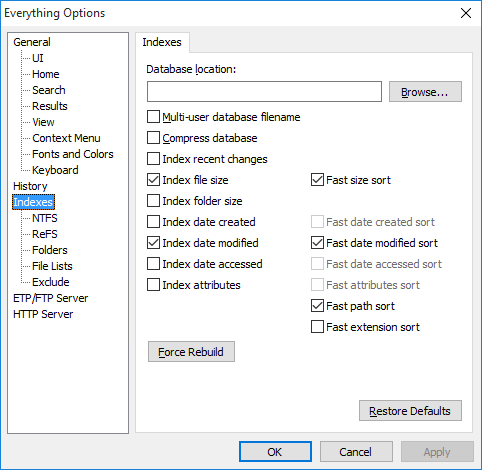
Contains settings for configuring the indexes.
- Database location
- Override the default location for the database.
The default location is: %LOCALAPPDATA%\Everything
If Store settings and data in %APPDATA%\Everything is disabled, the database location is the same as your Everything.exe location.
Click Browse... to browse for a new database location.
- Multi-user database filename
- Normally Everything uses the filename Everything.db for the database.
If enabled Everything will use the unique filename Everything.<ComputerName>.<UserName>.db.
This might be useful when using the portable version of Everything on a thumb drive on different computers.
- Index recent changes
- Maintain a separate recent change sorted database of all file system changes that can be searched with rc: or sorted by date recently changed.
- Enable journal
- Logs changes to the Everything index.
The Index Journal can be viewed from the Index menu.
For more information, see Index Journal.
- Maximum size
- The maximum size of the journal log in KB.
Old items are deleted to make room for new items.
1KB = 1024 bytes.
- Index file size
- Include file size information in the index.
Size information is maintained in real time.
Enable to search for size information instantly.
Greatly improves sorting by size performance.
Requires an additional 8 bytes of memory per file.
- fast size sort
- Maintain a separate size sorted database of files.
Enable to sort by size instantly.
Enable to make Everything remember this sort between searches.
Requires an additional 4-8 bytes of memory per file.
- Index folder size
- Include folder size information in the index.
Size information is maintained in real time.
Enable to search for folder size information instantly.
Requires an additional 8 bytes of memory per folder.
Folder size will not include excluded files.
- Index date created
- Include date created information in the index.
Date created information is maintained in real time.
Enable to search for date created information instantly.
Greatly improves sorting by date created performance.
Requires an additional 8 bytes of memory per file and folder.
- fast date created sort
- Maintain a separate date created sorted database of files and folders.
Enable to sort by date created instantly.
Enable to make Everything remember this sort between searches.
Requires an additional 4-8 bytes of memory per file and folder.
- Index date modified
- Include date modified information in the index.
Date modified information is maintained in real time.
Enable to search for date modified information instantly.
Greatly improves sorting by date modified performance.
Requires an additional 8 bytes of memory per file and folder.
- fast date modified sort
- Maintain a separate date modified sorted database of files and folders.
Enable to sort by date modified instantly.
Enable to make Everything remember this sort between searches.
Requires an additional 4-8 bytes of memory per file and folder.
- Index date accessed
- Include date accessed information in the index.
Date accessed information is maintained in real time.
Enable to search for date accessed information instantly.
Greatly improves sorting by date accessed performance.
Requires an additional 8 bytes of memory per file and folder.
- fast date accessed sort
- Maintain a separate date accessed sorted database of files and folders.
Enable to sort by date accessed instantly.
Enable to make Everything remember this sort between searches.
Requires an additional 4-8 bytes of memory per file and folder.
- Index attributes
- Include attributes information in the index.
Attributes information is maintained in real time.
Enable to search for attributes information instantly.
Greatly improves sorting by attributes performance.
Requires an additional 4 bytes of memory per file and folder.
- fast attributes sort
- Maintain a separate attributes sorted database of files and folders.
Enable to sort by attributes instantly.
Enable to make Everything remember this sort between searches.
Requires an additional 4-8 bytes of memory per file and folder.
- fast extension sort
- Maintain a separate extension sorted database of files and folders.
Enable to sort by extension instantly.
Enable to make Everything remember this sort between searches.
Requires an additional 4-8 bytes of memory per file.
- Force Rebuild
- Rebuild your Everything index.
Any existing indexes and property indexes are cleared.
FAT
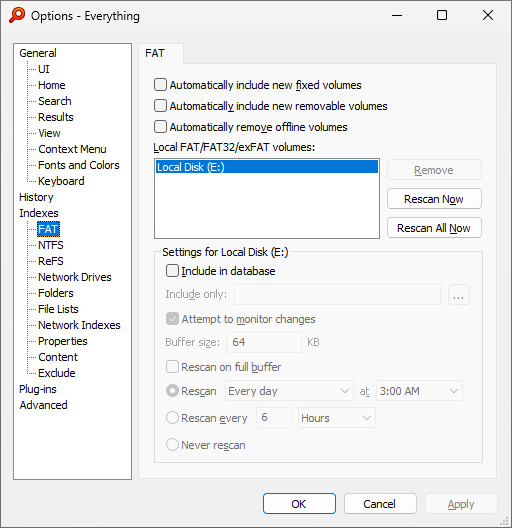
Contains settings for configuring FAT, FAT32 and exFAT volume indexing.
- Automatically include new fixed volumes
- Automatically include new fixed FAT volumes in Everything.
Everything will perform a quick reindex to add new fixed FAT volumes to your index.
- Automatically include new removable volumes
- Automatically include new removable volumes in Everything.
Everything will perform a quick reindex to add new removable FAT volumes to your index.
- Automatically remove offline volumes
- Automatically remove offline FAT volumes from your index.
Everything will perform a quick reindex to remove offline FAT volumes from your index.
- Include in database
- Include this FAT volume in your Everything index.
- Include only
- Specifies which folders are indexed on this volume.
Use a semicolon (;) delimited list of folder paths to include.
Leave empty to include all folders.
- Attempt to monitor changes
- Attempt to monitor changes to the selected folder.
- Buffer size
- The size of the buffer to read changes in bytes.
Network shares are limited to 65536 bytes.
Changes will be missed if Everything is unable to process this buffer fast enough.
- Rescan on full buffer
- Everything will perform a rescan if it detects the buffer is full.
- Update
- Choose when the selected folder is updated.
For more information, see Folder Indexing.
NTFS
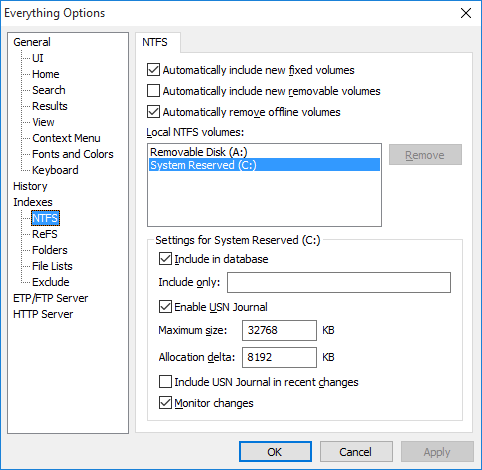
Contains settings for configuring NTFS volumes and NTFS indexing.
- Automatically include new fixed volumes
- Automatically include new fixed NTFS volumes in Everything.
Everything will perform a quick reindex to add new fixed NTFS volumes to your index.
- Automatically include new removable volumes
- Automatically include new removable NTFS volumes in Everything.
Everything will perform a quick reindex to add new removable NTFS volumes to your index.
- Automatically remove offline volumes
- Automatically remove offline NTFS volumes from your index.
Everything will perform a quick reindex to remove offline NTFS volumes from your index.
- Include in database
- Include this NTFS volume in your Everything index.
- Include only
- Specifies which folders are indexed on this volume.
Use a semicolon (;) delimited list of folder paths to include.
Leave empty to include all folders.
- Enable USN Journal
- Enable USN Journal logging on the selected NTFS volume.
Everything uses the USN Change journal to index and monitor changes to NTFS volumes.
The USN Journal is managed by the NTFS driver (not Everything).
- Maximum size
- Set the maximum size of the USN Journal in KB.
If Everything is rebuilding the database after restarting Windows, try increasing this size to at least 32768 KB.
If the journal grows larger than this value it is truncated by removing the specified allocation delta from the beginning of the log.
Changing this value is not immediate.
The USN Journal will eventually grow or shrink to the requested size.
- Allocation delta
- Specify how much is removed from the start of the USN Journal in bytes when it has reached its maximum size.
- Load recent changes from USN journal
- Load the entire USN Journal for this volume into the recent changes database.
- Monitor changes
- Keep this NTFS index up to date.
ReFS
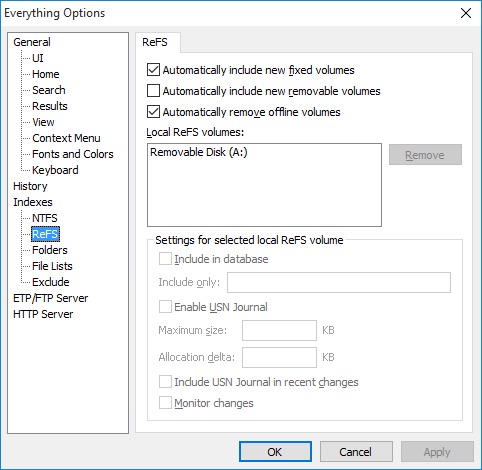
Contains settings for configuring ReFS volumes and ReFS indexing.
- Automatically include new fixed volumes
- Automatically include new fixed ReFS volumes in Everything.
Everything will perform a quick reindex to add new fixed ReFS volumes to your index.
- Automatically include new removable volumes
- Automatically include new removable ReFS volumes in Everything.
Everything will perform a quick reindex to add new removable ReFS volumes to your index.
- Automatically remove offline volumes
- Automatically remove offline ReFS volumes from your index.
Everything will perform a quick reindex to remove offline ReFS volumes from your index.
- Include in database
- Include this ReFS volume in your Everything index.
- Include only
- Specifies which folders are indexed on this volume.
Use a semicolon (;) delimited list of folder paths to include.
Leave empty to include all folders.
- Enable USN Journal
- Enable USN Journal logging on the selected ReFS volume.
Everything uses the USN Change journal to index and monitor changes to ReFS volumes.
The USN Journal is managed by the ReFS driver (not Everything).
- Maximum size
- Set the maximum size of the USN Journal in KB.
If Everything is rebuilding the database after restarting Windows, try increasing this size to at least 32768 KB.
If the journal grows larger than this value it is truncated by removing the specified allocation delta from the beginning of the log.
Changing this value is not immediate.
The USN Journal will eventually grow or shrink to the requested size.
- Allocation delta
- Specify how much is removed from the start of the USN Journal in bytes when it has reached its maximum size.
Allocation delta is currently ignored for ReFS volumes.
- Load recent changes from USN journal
- Load the entire USN Journal for this volume into the recent changes database.
- Monitor changes
- Keep this ReFS index up to date.
Network Drives
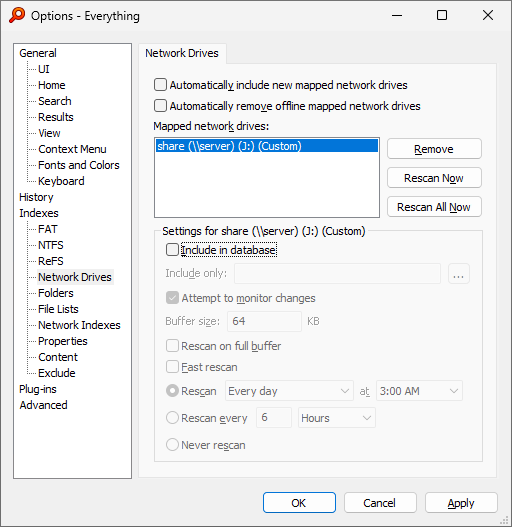
Contains settings for configuring mapped network drive indexing.
- Automatically include new fixed volumes
- Automatically include new mapped network drives volumes in Everything.
Everything will perform a quick reindex to add new mapped network drives to your index.
- Automatically remove offline volumes
- Automatically remove offline mapped network drives from your index.
Everything will perform a quick reindex to remove offline mapped network drives from your index.
- Include in database
- Include this mapped network drive volume in your Everything index.
- Include only
- Specifies which folders are indexed on this volume.
Use a semicolon (;) delimited list of folder paths to include.
Leave empty to include all folders.
- Attempt to monitor changes
- Attempt to monitor changes to the selected folder.
- Buffer size
- The size of the buffer to read changes in bytes.
Network shares are limited to 65536 bytes.
Changes will be missed if Everything is unable to process this buffer fast enough.
- Rescan on full buffer
- Everything will perform a rescan if it detects the buffer is full.
- Fast rescan
- Only rescans folders that have been modified since the last rescan.
Requires the remote drive to be formatted as NTFS or compatible.
- Update
- Choose when the selected folder is updated.
For more information, see Folder Indexing.
Folders
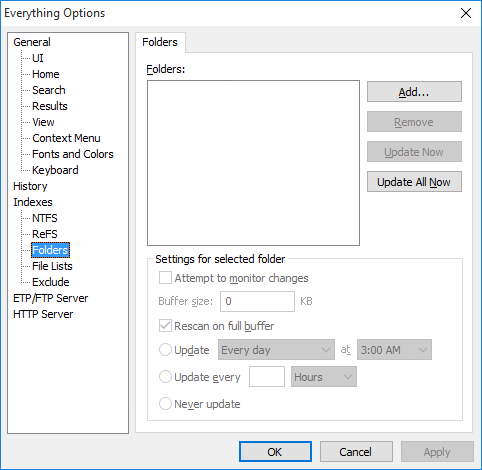
Contains settings for configuring folder indexes.
- Folders
- The list of folders to include in your Everything index.
Can be used to index Window shares, NAS, CDRoms, DVDRoms, FAT, FAT32 and ExFAT volumes.
To add a folder to the list, click Add....
To remove a folder from the list click Remove....
To update a folder in the list now, click Update Now.
To update all folders in the list now, click Update All Now.
- Attempt to monitor changes
- Attempt to monitor changes to the selected folder.
- Buffer size
- The size of the buffer to read changes in bytes.
Network shares are limited to 65536 bytes.
Changes will be missed if Everything is unable to process this buffer fast enough.
- Rescan on full buffer
- Everything will perform a rescan if it detects the buffer is full.
- Fast rescan
- Only rescans folders that have been modified since the last rescan.
Requires the remote drive to be formatted as NTFS or compatible.
- Update
- Choose when the selected folder is updated.
For more information, see Folder Indexing.
File Lists
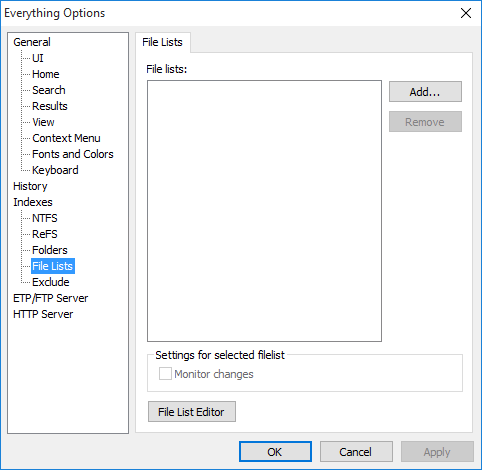
Contains settings for configuring file lists indexes.
- File lists
- The list of file lists to include in your Everything index.
To add a file list to the list, click Add....
To remove a file list from the list, click Remove.
Click the File List Editor button to open the file lists editor.
The file list editor can create a new file list or edit an existing one.
For more information, see File lists.
Network Indexes
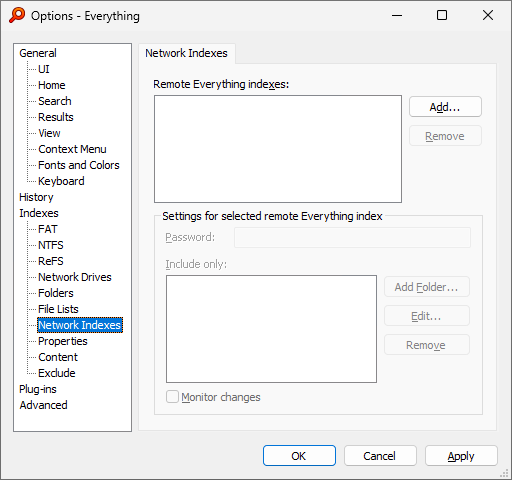
Contains settings for configuring remote Everything indexes.
- Remote Everything indexes
- The list of remote Everything indexes.
To add a network index to the list, click Add....
To remove a network index from the list click Remove....
- Password
- Sets the password to access the network index.
- Include only
- Sets which folders are included from the network index and allows remapping.
All folders are included when empty.
To add a folder to include, click Add....
- Monitor changes
- Keep this network index up to date.
For more information, see Everything Server.
Properties
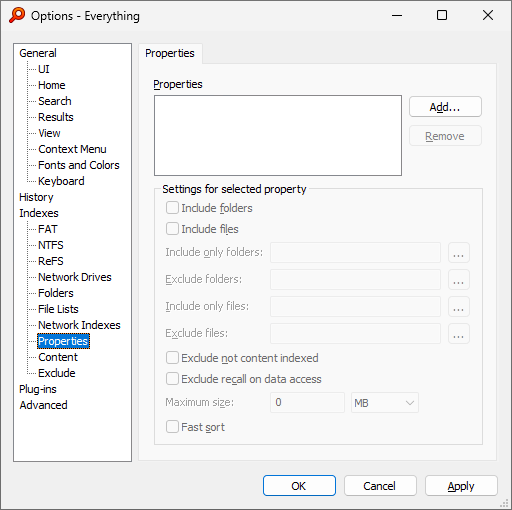
Contains settings for configuring indexed properties.
- Properties
- The list of properties to index.
To add a property, click Add....
- Include folders
- Index the selected property for folders.
- Include files
- Index the selected property for files.
- Include only folders
- Specifies which folders to include when indexing the selected property.
Use a semicolon (;) delimited list of folder paths to include.
Leave empty to include all folders.
- Exclude folders
- Specifies which folders to exclude when indexing the selected property.
Use a semicolon (;) delimited list of folder paths to exclude.
Leave empty to include all folders.
- Include only files
- Specifies which files to include when indexing the selected property.
Use a semicolon (;) delimited list of folder paths to include.
Leave empty to include all files.
- Exclude files
- Specifies which files to exclude when indexing the selected property.
Use a semicolon (;) delimited list of folder paths to exclude.
Leave empty to include all files.
- Exclude not content indexed
- Exclude files with the Not Content Indexed attribute.
- Exclude recall on data access
- Exclude files with the recall on data access attribute.
Enable to prevent downloading content from the cloud.
- Maximum size
- Exclude files with a size larger than specified.
Set to 0 to include all files.
- Fast sort
- Enable fast sorting for the selected property.
When enabled, sorting by this property will be instant and persistent.
Exclude
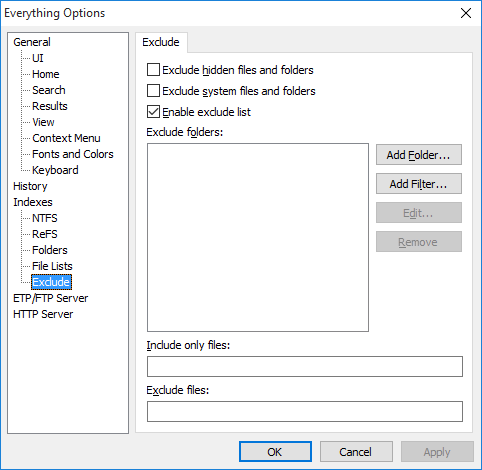
Contains settings for excluding files and folders from your index.
- Exclude hidden files and folders
- Exclude files and folders with the hidden attribute.
- Exclude system files and folders
- Exclude files and folders with the system attribute.
- Exclude folders
- A list of folders to exclude from the index.
To add a folder to the list, click Add Folder....
To add a wildcard filter to the list, click Add Filter....
To add a regex filter to the list, click Add Filter.... and prefix your filter with regex:
To remove a folder or filter from the list, click Remove.
For example, to exclude the windows folders:
- Click Add Folder....
- Type in:
- Click OK.
- Include only files
- A semicolon delimited wildcard filter list of files to include. Leave empty to include all files.
For example, include only mp3 and mkv files:
Prefix a filter with regex: to enable regex.
For example, to include only files starting with A-M:
- Exclude files
- A semicolon delimited wildcard filter list of files to exclude. Leave empty to include all files.
For example, exclude db files
Prefix a filter with regex: to enable regex.
Plugins
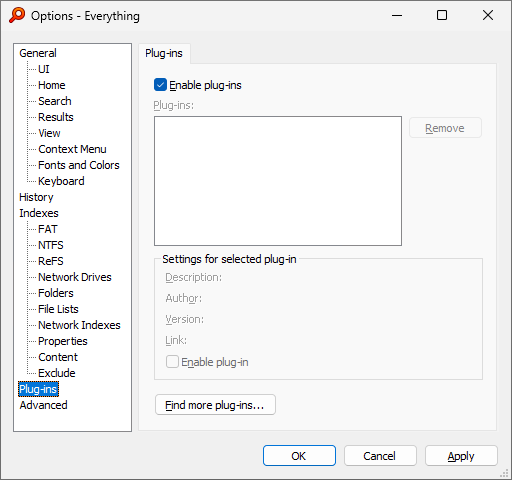
Contains settings for configuring plugins.
To download a plugin, please see Plugins.
When a plugin is installed, additional option pages may appear under the Plugins section on the left.
- Enable plug-ins
- Load and run plug-ins on startup.
Requires a restart.
- Enable plug-in
- Enable the selected plugin.
Requires a restart.
Advanced
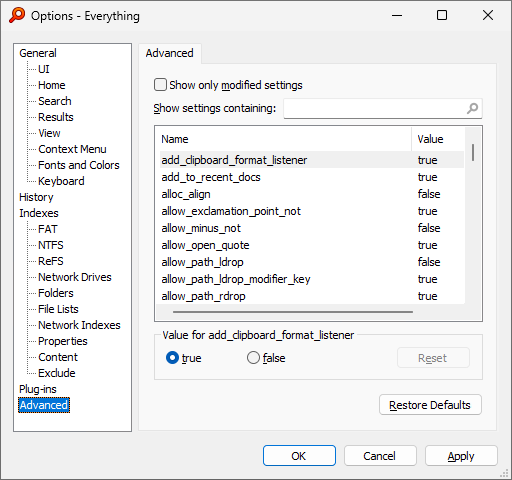
Contains advanced settings for configuring Everything.
Select an advanced setting and press F1 to show additional help.
For detailed information on each setting, please see INI.
- Show only modified settings
- Enable to show only settings that have been modified.
- Show settings containing
- Filters the list of advanced settings by name.
- Value for selected setting
- Displays the current value for the selected setting.
Click Reset to restore the default value.
Import and Export Settings
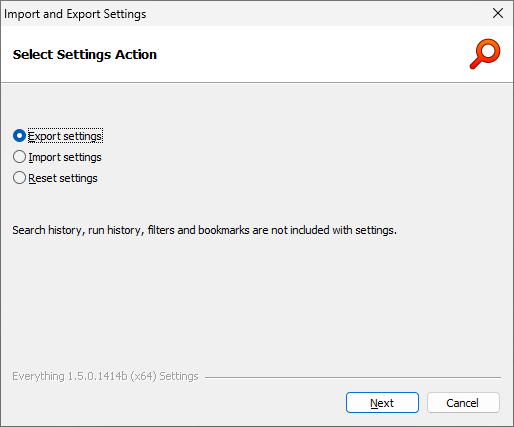
Settings can be imported, exported or reset with the Import and Export settings wizard.
Search history, run history, filters and bookmarks are not included with settings.
To make a backup of all settings:
- In Everything, from the Tools menu, click Import and Export settings.
- Check Export settings.
- Click Next.
- Click Browse.
- Select a location to store your Everything.ini and click Save.
- Click Export.
- Click Finish.
To restore all settings:
To reset all settings:
- In Everything, from the Tools menu, click Import and Export settings.
- Check Reset settings.
- Click Next.
- Click Reset.
Your current settings will be lost.
- Click Yes to confirm.
- Click Finish to restart Everything.
Everything will restart to apply your settings.
See also