Index Journal
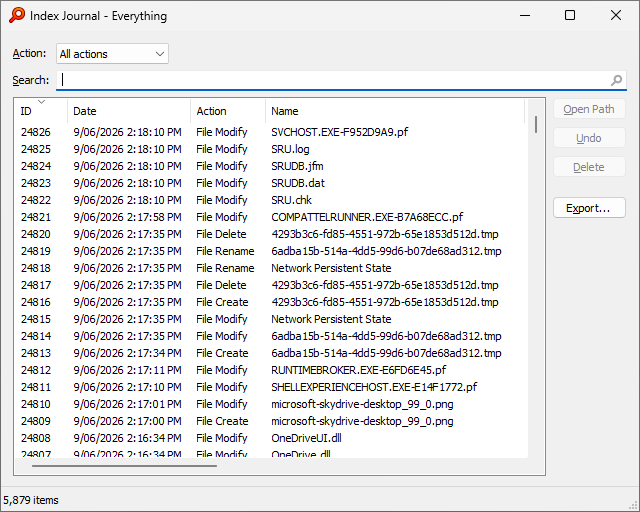
The Index Journal is a list of all the changes made to your Everything index, such as files or folders being created, renamed, moved, modified or deleted.
Use the Index Journal to track changes to your file systems.
Show the Index Journal
To show the Index Journal:
- In Everything, from the Index menu, click Index Journal.
 Configure the Index Journal
The
Indexes option page contains settings for configuring the Index Journal.
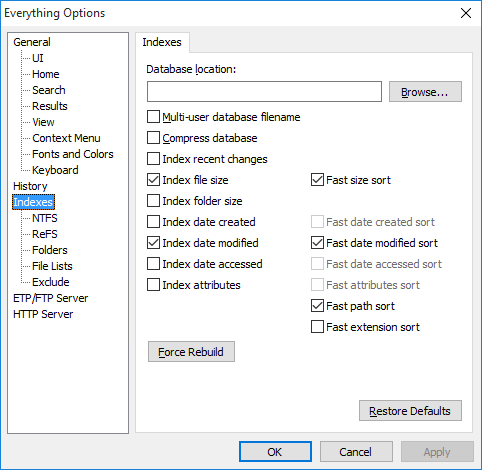
The Index Journal is enabled by default.
To disable the Index Journal:
- In Everything, from the Tools menu, click Options.
- Click the Indexes tab on the left.
- Uncheck Enable journal.
- Click OK.
The Index Journal stores up to 1 MB of changes (approximately 5000 file changes) by default.
To change the maximum number of items the Index Journal can store:
- In Everything, from the Tools menu, click Options.
- Click the Indexes tab on the left.
- Set a new Maximum Size in KB.
- Click OK.
Monitor changes to your file systems
The Index Journal reflects changes made to your index in real-time, including changes made outside of Everything.
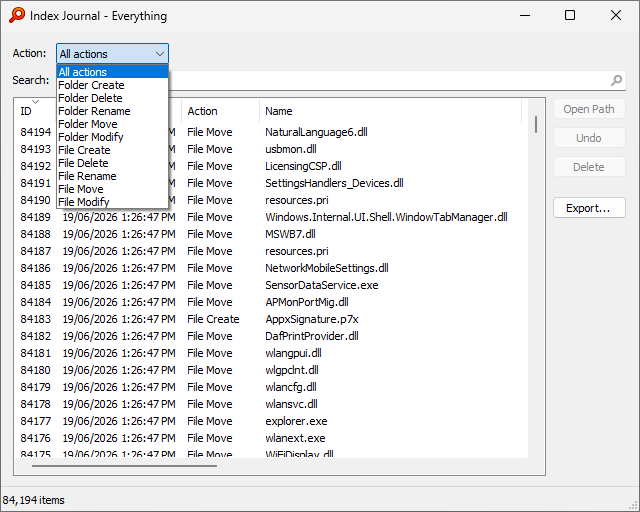
To limit the results to a specific action:
- In the Index Journal, select an Action:
To search for a specific file or file type, type in a partial filename or extension in the search box.
For example:
- To list changes to files and folders on the desktop, search for:
\desktop
- To list changes to docx files, search for:
*.docx
Use the
regex: modifier to apply regular expressions.
Searches match the Name, Path, New Name and New Path fields.
Undo move and rename operations
The Index Journal can be used to undo accidental moves or renames outside of Everything.
Think of it as a global file system undo feature.
The following actions can be undone:
- Folder rename
- File rename
- Folder move
- File move
To undo an action:
- In the Index Journal, select an item and click Undo.
To undo an action performed in Everything:
- In Everything, from the Edit menu, click Undo.
To view all actions performed in Everything:
- In Everything, from the Edit menu, click Undo History.
The Index Journal shows raw file system changes.
Files deleted to the recycle bin are shown with the
File Move action.
To restore a file from the Recycle Bin:
- Undo the deleted file from Everything or Windows Explorer.
-or-
- Select the file that was moved to the
$Rxxxxxx.xxx file in C:\$RECYCLE.BIN and click Undo.
Perform other actions
Files can be deleted directly from the Index Journal:
- Select an item and click Delete.
To open the containing folder of an item:
- Select an item and click Open Path.
For moved items, the new path takes precedence.
Right click to open the old path.
To copy the full path of an item:
- Select an item and press Ctrl + C.
-or-
- Right click an item and click Copy Full Path.
For renamed items, the new path takes precedence.
Right click to specify the old or new path.
To export results to a Comma Separated Values (CSV) file:
- Click Export....
- Choose a filename and click Save.
Perform advanced actions
To view statistics about file changes (created, moved, modified, or deleted) and Index Journal information:
- In Everything, from the Tools menu, under the Debug submenu, click Statistics.
The Index Journal is essential to the
Everything Server as an audit of all changes to your index.
Clients use the Index Journal on the server to synchronize a local copy of the server index.
See also